Sorting in Excel 2016 - Advanced Excel Training with Sujeet Kumar
Wednesday, June 7, 2017
VBA Macros Training
Data Type in VBA - Excel VBA Training with Sujeet Kumar
VBA Data Types
When you declare a variable, you should also identify its data type. You're probably already very familiar with data types because you assign data types to table fields. VBA uses the same data types to define a variable.
The most important job of a data type is to ensure the validity of your data. Specifying a data type won't keep you from entering an invalid value, but it will keep you from entering an invalid type. If you omit the data type, VBA applies the Variant data type to your variable—it's the most flexible and VBA won't guess at what the data type should be. Table 3.1 compares VBA's many data types.
Table 3.1 VBA Data Type Comparison
Data Type or Subtype
|
Required Memory
|
Default Value
|
VBA Constant
|
Range
|
Integer
|
2 bytes
|
0
|
vbInteger
|
–32,768 to 32,767
|
Long Integer
|
4 bytes
|
0
|
vbLong
|
–2,147,483,648 to 2,147,486,647
|
Single
|
4 bytes
|
0
|
vbSingle
|
–3402823E38 to –1.401298E–45 or 1.401298E–45 to 3.402823E38
|
Double
|
8 bytes
|
0
|
vbDouble
|
–1.79769313486232E308 to –4.94065645841247E–324 or 1.79769313486232E308 to 4.94065645841247E–324
|
Currency
|
8 bytes
|
0
|
vbCurrency
|
–922,337,203,477.5808 to 922,337,203,685,477.5807
|
Date
|
8 bytes
|
00:00:00
|
vbDate
|
January 1, 100 to December 31, 9999
|
Fixed String
|
String's length
|
Number of spaces to accommodate string
|
vbString
|
1 to 65,400 characters
|
Variable String
|
10 bytes plus the number of characters
|
Zero- length string ("")
|
vbString
|
0 to 2 billion characters
|
Object
|
4 bytes
|
Nothing (vbNothing)
|
vbObject
|
Any Access object, ActiveX component or Class object
|
Boolean
|
2 bytes
|
False
|
vbBoolean
|
–1 or 0
|
Variant
|
16 bytes
|
Empty (vbEmpty)
|
vbVariant
|
Same as Double
|
Decimal
|
14 bytes
|
0
|
vbDecimal
|
-79,228,162,514,264,337,593,543,950,335 to 79,228,162,514,264,337,593,543,950,335 or –7.2998162514264337593543950335 to 7.9228162514264337593543950335
|
Byte
|
1 byte
|
0
|
vbByte
|
0 to 255
|
The Boolean Data Type
Use the Boolean numeric data type to store logical data that contains only two values: on and off, true and value, yes and no, and so on. The keywords True and False are predefined constants and are interchangeable with the values –1 and 0, respectively. To illustrate these keywords, enter the following statements, one at a time in the VBE's Immediate window, as shown in Figure 3.7:
?True = 0 ?True = -1 ?False = 0 ?False = -1 ?True = False
The Byte Data Type
Byte is VBA's smallest numeric data type and holds a numeric value from 0 to 255. This data type doesn't include any negative values. If you attempt to assign one, VBA returns an error.
The Currency Data Type
Use the Currency numeric data type to store monetary values from –922,337,203,477.5808 to 922,337,203,685,477.5807. A Currency data type results in a scaled value with accuracy to 15 digits to the left of the decimal point and 4 digits to the right. Use this data type to avoid rounding errors when precision is of the utmost importance.
The Date Data Type
The Date data type stores a specially formatted numeric value that represents both the date and time. You don't have to store both the date and time value. The Date data type accepts either the date or the time, or both. Possible values range from January 1, 100 to December 31, 9999.
The Decimal Data Type
The Decimal data type is a subtype of Variant and not a truly separate data type all its own, accommodating values from –79,228,162,514,264,337,593,543,950,335 to 79,228,162,514,264,337,593,543,950,335 if the value contains no decimal places. The data type maintains precision up to 28 decimal places with values from –7.9228162514264337593543950335 to 7.9228162514264337593543950335.
The Double Data Type
Use the Double data type to store precision floating point numbers from –1.79769313486232E308 to –4.94065645841247E-324 or 1.79769313486232E308 to 4.94065645841247E-324.
The Integer Data Type
This is probably the most common data type in use, besides String. Use this data type to store only whole numbers that range from –32,768 to 32,767.
The Long Data Type
The Long data type is also an Integer data type storing only whole numbers, but the range is much larger than the traditional Integer data type. Use Long to store values from –2,147,483,648 to 2,147,486,647.
The Object Data Type
An Object variable is actually a reference to an Access object, such as a form, report, or control. Or, the data type can reference an ActiveX component, or a class object created in a class module.
Class modules are covered briefly in "Introducing the VBA Modules," in Chapter 2 and in more depth in "Introducing Objects," in Chapter 8.
You'll learn more about Object variables in " in Chapter 8, "Understanding Objects."
The Single Data Type
The Single data type stores precision numbers—numbers with decimal places or fractional numbers. The data type is similar to Double, but the range is smaller. Use this data type to store values from –3402823E38 to –1.401298E–45 or from 1.401298E–45 to 3.402823E38.
The String Data Type
String is another very common data type; it stores values or numbers, but treats them as text. There are two varieties: fixed and variable. A fixed string can handle from 1 to 65,400 characters. To declare a fixed string, use the Dim statement in the form
Dim variablename As String * stringlength
In contrast, the variable String data type grows and shrinks as required to fit its stored value. By default, all String variables are of this type. To declare this type, use the Dim statement in the form
Dim variablename As String
The Variant Data Type
The Variant data type stores numeric and non-numeric values. This data type is the most flexible of the bunch because it stores very large values of almost any type (matches the Double numeric data type). Use it only when you're uncertain of the data's type or when you're accommodating foreign data and you're not sure of the data type's specifications.
The Variant data type is VBA's default, so the following code interprets varValue as a Variant:
Dim varValue
Although the Variant data type is flexible, VBA processes these data types a little slower because it must determine the most accurate data type for the assigned value. However, most likely, you'll never notice the performance hit.
The biggest disadvantage is the data type's lack of readability. By that, we mean that you can't easily determine the appropriate data type by viewing the code, and that can be a problem.
Sunday, May 28, 2017
Calculate Disscount in Excel using Netsted If Formulas in Excel 2016 with Sujeet Kumar
How to use Excel IF function with multiple conditions
In summary, there can be 2 basic types of multiple conditions - with AND and OR logic. Consequently, your IF function should embed an AND or OR function in the logical test, respectively.
- AND function. If your logical test contains the AND function, Microsoft Excel returns TRUE if all the conditions are met; otherwise it returns FALSE.
- OR function. In case you use the OR function in the logical test, Excel returns TRUE if any of the conditions is met; FALSE otherwise.
To better illustrate the point, let's have a look at a few IF examples with multiple conditions.
Example 1. Using IF & AND function in Excel
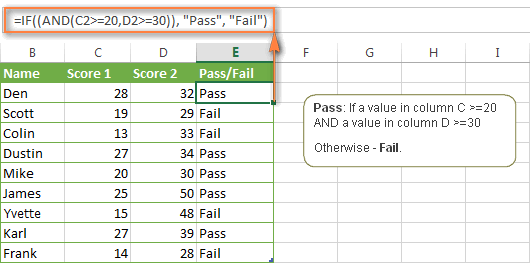
Suppose, you have a table with the results of two exam scores. The first score, stored in column C, must be equal to or greater than 20. The second score, listed in column D, must be equal to or exceed 30. Only when both of the above conditions are met, a student passes the final exam.
The easiest way to make a proper formula is to write down the condition first, and then incorporate it in the logical_test argument of your IF function:
Condition: AND(B2>=20, C2>=30)
IF/AND formula:
=IF((AND(C2>=20, D2>=30)), "Pass", "Fail")
Easy, isn't it? The formula tells Excel to return "Pass" if a value in column C >=20 AND a value in column D >=30. Otherwise, the formula returns "Fail". The screenshot below proves that our Excel IF /AND function is correct:


Note. Microsoft Excel checks all conditions in the AND function, even if one of the already tested conditions evaluates to FALSE. Such behavior is a bit unusual since in most of programming languages, subsequent conditions are not tested if any of the previous tests has returned FALSE.
In practice, a seemingly correct IF / AND formula may result in an error because of this specificity. For example, the formula
=IF(AND(A2<>0,(1/A2)>0.5),"Good", "Bad") will return "Divide by Zero Error" (#DIV/0!) if cell A2 is equal to 0. The avoid this, you should use a nested IF function:=IF(A2<>0, IF((1/A2)>0.5, "Good", "Bad"), "Bad")Example 2. Using IF with OR function in Excel
You use the combination of IF & OR functions in a similar way. The difference from the IF / AND formula discussed above is that Excel returns TRUE if at least one of the specified conditions is met.
So, if we modify the above formula in the following way:
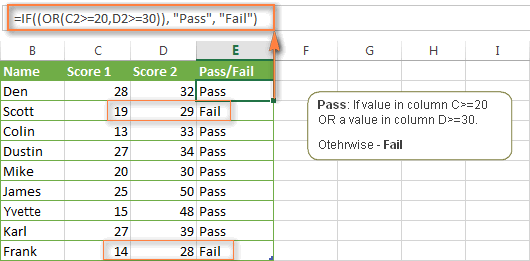
=IF((OR(C2>=20, D2>=30)), "Pass", "Fail")
Column E will have the "Pass" mark if either the first score is equal to or greater than 20 OR the second score is equal to or greater than 30.
As you see in the screenshot below, our students have a better chance to pass the final exam with such conditions (Scott being particularly unlucky failing by just 1 point : )


Naturally, you are not limited to using only two AND/OR functions in your Excel IF formulas. You can use as many logical functions as your business logic requires, provided that:
- In Excel 2013, 2010 and 2007, your formula includes no more than 255 arguments, and the total length of the formula does not exceed 8,192 characters.
- In Excel 2003 and lower, you can use up to 30 arguments and the total length of your formula shall not exceed 1,024 characters.
Example 3. Using IF with AND & OR functions
In case you have to evaluate your data based on several sets of multiple conditions, you will have to employ both AND & OR functions at a time.
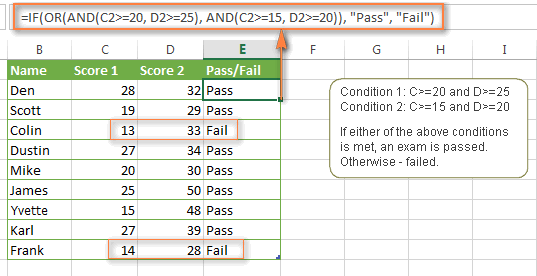
In the above table, suppose you have the following criteria to evaluate the students' success:
- Condition 1: column C>=20 and column D>=25
- Condition 2: column C>=15 and column D>=20
If either of the above conditions is met, the final exam is deemed passed, otherwise - failed.
The formula might seem tricky, but in a moment, you will see that it is not! You just have to express two conditions as AND statements and enclose them in the OR function since you do not require both conditions to be met, either will suffice:
OR(AND(C2>=20, D2>=25), AND(C2>=15, D2>=20)
Finally, use the above OR function as the logical test in the IF function and supply value_if_true and value_if_false arguments. As the result, you will get the following IF formula with multiple AND / OR conditions:
=IF(OR(AND(C2>=20, D2>=25), AND(C2>=15, D2>=20)), "Pass", "Fail")
The screenshot below indicates that we've got the formula right:


Using multiple IF functions in Excel (nested IF functions)
If you need to create more elaborate logical tests for your data, you can include additional IF statements in the value_if_true and value_if_false arguments of your Excel IF formulas. These multiple IF functions are called nested IF functions and they may prove particularly useful if you want your formula to return 3 or more different results.
Here's a typical example: suppose you want not simply to qualify the students' results as Pass/Fail, but define the total score as "Good", "Satisfactory" and "Poor". For instance:
- Good: 60 or more (>=60)
- Satisfactory: between 40 and 60 (>40 and <60)
- Poor: 40 or less (<=40)
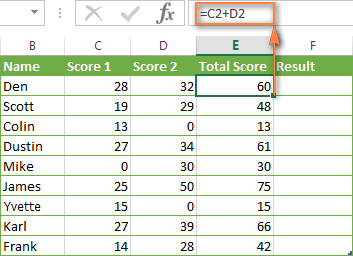
To begin with, you can add an additional column (E) with the following formula that sums numbers in columns C and D:
=C2+D2
And now, let's write a nested IF function based on the above conditions. It's considered a good practice to start with the most important condition and make your functions as simple as possible. Our Excel nested IF formula is as follows:
=IF(E2>=60, "Good", IF(E2>40, "Satisfactory", "Poor "))
As you see, just one nested IF function is sufficient in this case. Naturally, you can nest more IF functions if you want to. For example:
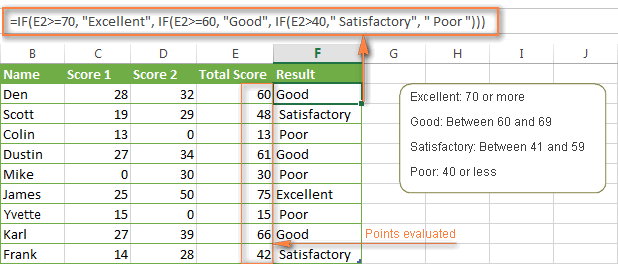
=IF(E2>=70, "Excellent", IF(E2>=60, "Good", IF(E2>40, "Satisfactory", "Poor ")))
The above formula adds one more conditions - the total score of 70 points and more is qualified as "Excellent".

For more information about Excel IF with multiple conditions, please see How to use nested IF in Excel.
Using Excel IF in array formulas
Like other Excel functions, IF can be used in array formulas. You may need such a formula if you want to evaluate every element of the array when the IF statement is carried out.
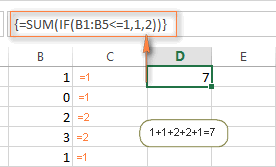
For example, the following array SUM/IF formula demonstrates how you can sum cells in the specified range based on a certain condition rather than add up the actual values:
=SUM(IF(B1:B5<=1,1,2))
The formula assigns a certain number of "points" to each value in column B - if a value is equal to or less than 1, it equates to 1 point; and 2 points are assigned to each value greater than 1. And then, the SUM function adds up the resulting 1's and 2's, as shown in the screenshot below.


Note. Since this is an array formula, remember to press Ctrl + Shift + Enter to enter it correctly.
Using IF function together with other Excel functions
Earlier in this tutorial, we've discussed a few IF formula examples demonstrating how to use the Excel IF function with logical functions AND and OR. Now, let's see what other Excel functions can be used with IF and what benefits this gives to you.
Example 1. Using IF with SUM, AVERAGE, MIN and MAX functions
When discussing nested IF functions, we wrote the formula that returns different ranking (Excellent, Good, Satisfactory or Poor) based on the total score of each student. As you remember, we added a new column with the formula that calculates the total of scores in columns C and D.
But what if your table has a predefined structure that does not allow any modifications? In this case, instead of adding a helper column, you could add values directly in your If formula, like this:
=IF((C2+D2)>=60, "Good", IF((C2+D2)=>40, "Satisfactory", "Poor "))
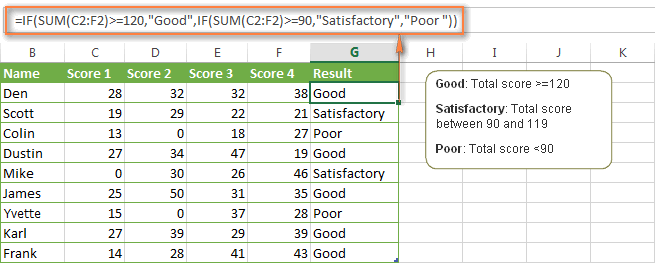
Okay, but what if your table contains a lot of individual scores, say 5 different columns or more? Summing so many figures directly in the IF formula would make it enormously big. An alternative is embedding the SUM function in the IF's logical test, like this:
=IF(SUM(C2:F2)>=120, "Good", IF(SUM(C2:F2)>=90, "Satisfactory", "Poor "))
In a similar fashion, you can use other Excel functions in the logical test of your IF formulas:
IF and AVERAGE:
=IF(AVERAGE(C2:F2)>=30,"Good",IF(AVERAGE(C2:F2)>=25,"Satisfactory","Poor "))
The formulas retunes "Good" if the average score in columns C:F is equal to or greater than 30, "Satisfactory" if the average score is between 29 and 25 inclusive, and "Poor" if less than 25.
IF and MAX/MIN:
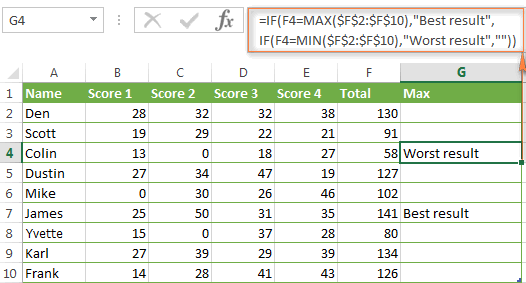
To find the highest and lowest scores, you can use the MAX and MIN functions, respectively. Assuming that column F is the total score column, the below formulas work a treat:
MAX:
=IF(F2=MAX($F$2:$F$10), "Best result", "")
MIN:
=IF(F2=MIN($F$2:$F$10), "Worst result", "")
If you'd rather have both the Min and Max results in the same column, you can nest one of the above functions in the other, for example:
=IF(F2=MAX($F$2:$F$10) ,"Best result", IF(F2=MIN($F$2:$F$10), "Worst result", ""))
In a similar manner, you can use the IF function with your custom worksheet functions. For example, you can use it with the GetCellColor / GetCellFontColor functions to return different results based on a cell color.
In addition, Excel provides a number of special IF functions to analyze and calculate data based on different conditions.
For example, to count the occurrences of a text or numeric value based on a single or multiple conditions, you can use COUNTIF and COUNTIFS, respectively. To find out a sum of values based on the specified condition(s), use the SUMIF or SUMIFS functions. To calculate the average according to certain criteria, use AVERAGEIF or AVERAGEIFS.
For the detailed step-by-step formula examples, check out the following tutorials:
- How to use the COUNTIF in Excel
- Using Excel COUNTIFS and COUNTIF with multiple conditions
- SUMIF in Excel - formula examples to conditionally sum cells
- How to use Excel SUMIFS and SUMIF with multiple criteria
Example 2. IF with ISNUMBER and ISTEXT functions
You already know a way to spot blank and non-blank cells using the ISBLANK function. Microsoft Excel provides analogous functions to identify text and numeric values - ISTEXT and ISNUMBER, respectively.
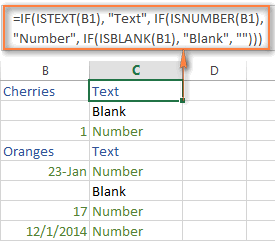
Here's is example of the nested Excel IF function that returns "Text" if cell B1 contains any text value, "Number" if B1 contains a numeric value, and "Blank" if B1 is empty.
=IF(ISTEXT(B1), "Text", IF(ISNUMBER(B1), "Number", IF(ISBLANK(B1), "Blank", "")))
Note. Please pay attention that the above formula displays "Number" for numeric values and dates. This is because Microsoft Excel stores dates as numbers, starting from January 1, 1900, which equates to 1.
Example 3. Using the result returned by IF in another Excel function
Sometimes, you can achieve the desired result by embedding the IF statement in some other Excel function, rather than using another function in a logical test.
Here's another way how you can use the CONCATINATE and IF functions together:
=CONCATENATE("You performed ", IF(C1>5,"fantastic!", "good"))
I believe you hardly need any explanation of what the formula does, especially looking at the screenshot below:


Excel IFERROR and IFNA functions
Both of the functions - IFERROR and IFNA - are used in Excel to trap errors in formulas. And both functions can return a special value that you specify if a formula produces an error. Otherwise, the result of the formula is returned.
The difference is that IFERROR handles all possible Excel errors, including #VALUE!, #N/A, #NAME?, #REF!, #NUM!, #DIV/0!, and #NULL!. While the Excel IFNA function specializes solely in #N/A errors, exactly as its name suggests.
The syntax of the Error functions is as follows.
IFERROR function
IFERROR(value, value_if_error)
IFNA function
IFNA(value, value_if_na)
The first parameter (value) is the argument that is checked for an error.
The second parameter (value_if_error / value_if_na) is the value to return if the formula evaluates to an error (any error in case of IFERROR; the #N/A error in case of IFNA).
Note. If any of the arguments is an empty cell, both of the Error functions treat it as an empty string ("").
The following example demonstrates the simplest usage of the IFERROR function:
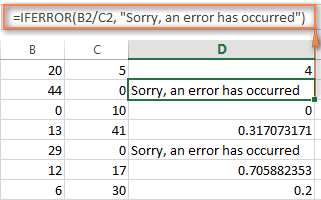
=IFERROR(B2/C2, "Sorry, an error has occurred")
As you see in the screenshot above, column D displays the quotient of the division of a value in column B by a value in column C. You can also see two error messages in cells D2 and D5 because everyone knows that you cannot divide a number by zero.
In some cases, you'd better use the IF function to prevent an error then ISERROR or ISNA to catch an error. Firstly, it's a faster way (in terms of CPU) and secondly it is a good programming practice. For example, the following IF formula produces the same result as the IFERROR function demonstrated above:
=IF(C2=0, "Sorry, an error has occurred", B2/C2)
But of course, there are cases when you cannot pre-test all function parameters, especially in very complex formulas, and foresee all possible errors. In such cases, the ISERROR() and IFNA() functions come in really handy. You can find a few advanced examples of using IFERROR in Excel in these articles:
And that's all I have to say about using the IF function in Excel. Hopefully, the IF examples we've discussed in this tutorial will help you to get started on the right track. Thank you for reading!
Subscribe to:
Comments (Atom)